Unblocking YouTube with BlockAway is one of the most searched proxy use cases globally — and for good reason. YouTube is blocked on millions of school and workplace networks, and BlockAway provides an immediate, no-installation solution. However, getting YouTube to load correctly through a proxy requires a few specific steps. Skip any of them and you will likely end up with a page that loads but videos refuse to play. This guide covers everything from the initial setup to fixing the problems that come up most often.
Why YouTube Gets Blocked
YouTube is blocked on restricted networks for several distinct reasons. Schools block it to prevent students from watching non-educational content during class time. Workplaces block it to maintain productivity and reduce bandwidth consumption. Additionally, some countries maintain government-level blocks on YouTube for political or regulatory reasons, particularly in parts of Asia, the Middle East, and Central Asia.
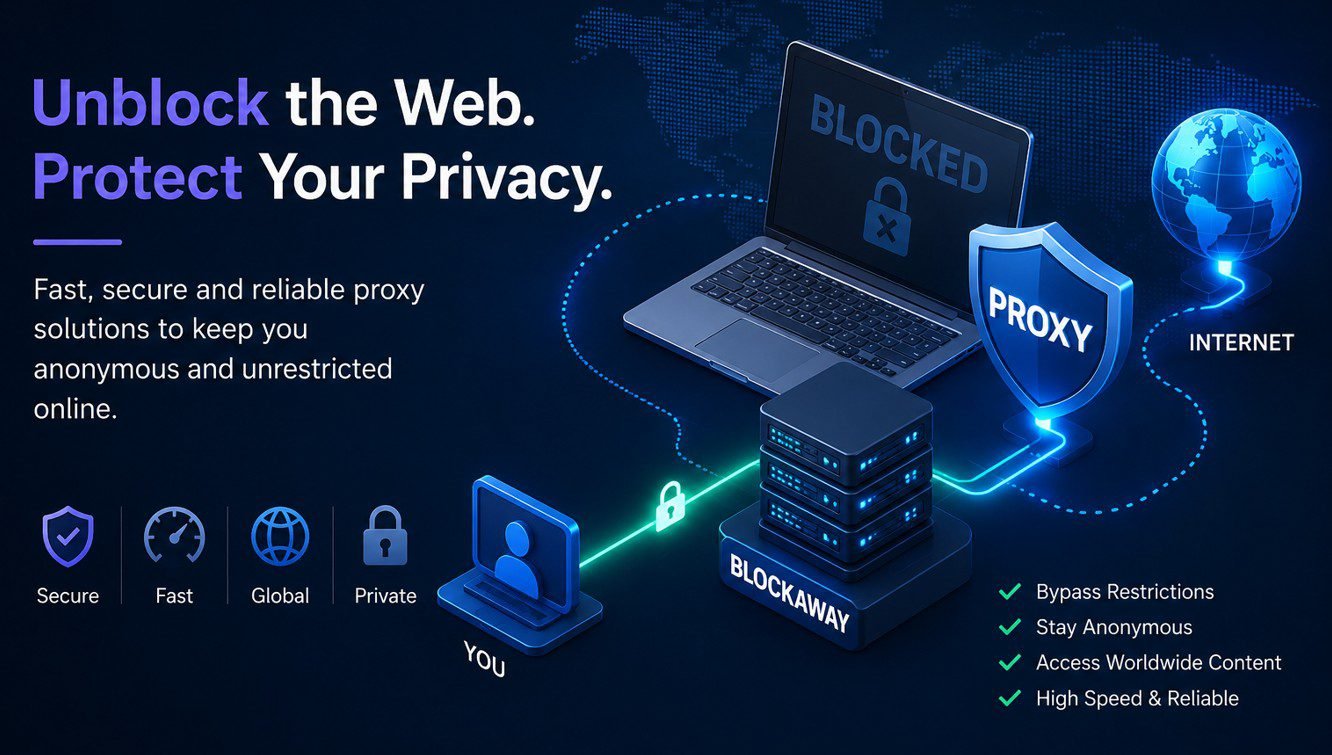
Furthermore, some organisations block YouTube specifically at the DNS level — meaning your device cannot even resolve youtube.com to an IP address. Others block at the firewall level, allowing the DNS lookup but refusing the outgoing connection. Both types of blocks are bypassed when you route your request through BlockAway’s external servers, because the request originates from BlockAway’s servers rather than your device.
Step-by-Step: How to Unblock YouTube Using BlockAway
Step 1: Open a new incognito or private browser window
Before starting, open an incognito window. This prevents existing YouTube cookies and session data from interfering with the proxied session. If you are already logged into YouTube in your regular browser profile, those session cookies will cause YouTube to recognise your account and potentially log your activity — even through the proxy. Incognito starts clean.
Step 2: Navigate to blockaway.net
In the incognito window, go to blockaway.net. If your network has blocked blockaway.net itself, you will need to access it through your mobile data connection — switch your device to mobile data, use a personal hotspot, or try an alternative proxy such as CroxyProxy which uses a different domain and may not be on the same blocklist.
Step 3: Enter the full YouTube URL
In BlockAway’s URL input field, type the complete address: https://www.youtube.com. Do not abbreviate it. Including the full https:// prefix is essential — BlockAway uses the protocol to correctly handle the secure connection to YouTube’s servers. For a specific video, paste the complete URL including the watch?v= parameter.
Step 4: Select a server location
Choose a server geographically close to you for the best speed. YouTube’s content delivery network is global, so geographic distance from the server has less impact on YouTube specifically than on other sites — but a nearby server still reduces your overall latency. If YouTube loads but specific videos are unavailable in your chosen server’s country, switch to a different server location where the content is licensed.
Step 5: Browse and search normally
Once YouTube loads through BlockAway, you can search for videos and navigate the site as normal. Links within YouTube will continue routing through the proxy automatically. However, if you click a link that takes you outside YouTube — to a linked website in a video description, for example — that external link may load outside the proxy. Re-enter any non-YouTube URL directly into BlockAway to proxy it separately.
Which Server Location Works Best for YouTube?
For general YouTube access where geo-restriction is not the concern — you just want to bypass a school or work block — the best server is the one geographically closest to you. Proximity reduces latency and typically means faster video loading and less buffering.
If you are trying to access YouTube videos that are blocked specifically in your country — for example, a music video with regional licensing restrictions — choose a server located in a country where that content is available. For most international YouTube content, a US or European server covers the broadest range of available videos.
What to Do When YouTube Still Won’t Play Videos
YouTube loading through BlockAway but videos not playing is the most common problem users encounter. This happens because video playback requires JavaScript and additional resource requests that sometimes break in a proxy environment. Try these fixes in order:
- Disable browser extensions — Ad blockers and script blockers frequently prevent YouTube’s video player from initialising. Disable all extensions and reload the page through BlockAway
- Switch server location — Some server IPs trigger YouTube’s bot detection, which blocks video playback even when the page loads. Trying a different server often resolves this
- Reduce video quality — Click the settings gear on the video player and set quality to 360p or 240p. Lower quality requires less bandwidth and loads more reliably through a proxied connection
- Try the YouTube mobile site — Enter https://m.youtube.com in BlockAway instead of the desktop URL. The mobile site is simpler and often works better through proxies
- Try CroxyProxy as an alternative — CroxyProxy has purpose-built YouTube streaming support that handles video better than BlockAway’s general proxy. If BlockAway cannot load YouTube videos consistently, CroxyProxy is the next tool to try
Limitations: What BlockAway Cannot Do on YouTube
Being realistic about limitations saves time. BlockAway handles YouTube access well in most cases, but there are specific scenarios where it consistently falls short. Age-restricted videos require a Google account login — logging into Google through a proxy is not recommended for security reasons, and YouTube may detect and block the proxy during the login process. YouTube Premium features, including background play and downloads, do not function through a proxy. Additionally, YouTube’s recommendation algorithm may behave differently when you appear to be browsing from a different country.
Use our Proxy Speed Test to check your connection quality before a long YouTube session — a latency above 400ms will result in noticeable buffering even at lower quality settings.
Frequently Asked Questions
Does BlockAway work for YouTube on mobile?
Yes. Open your mobile browser, navigate to blockaway.net, and enter https://m.youtube.com. The mobile YouTube site loads more reliably through a proxy than the full desktop site because it uses simpler code with fewer external resource requests. The experience is functional for watching videos, though the interface is basic compared to the official YouTube app.
Can I watch YouTube in HD through BlockAway?
HD playback is possible but bandwidth-dependent. At 1080p, YouTube requires a consistent 8–10 Mbps connection. A proxy adds latency and reduces effective throughput. In practice, 480p is the most reliably playable quality through BlockAway’s free tier. Premium users with faster server access may manage consistent 720p. Check your connection with the Proxy Speed Test before committing to a higher quality setting.
Why does YouTube redirect me away from the proxy?
This happens when you click a link within YouTube that takes you to a different domain — for example, a channel’s external website or a linked social media profile. BlockAway’s proxy only covers traffic that passes through its URL rewriting system. External links break out of the proxy session. Re-enter the new URL directly into BlockAway if you need it proxied.
Is it safe to log into my YouTube account through BlockAway?
Not recommended. Logging into a Google account through any proxy means your credentials pass through the proxy server. Even with SSL encryption, this introduces unnecessary risk. Additionally, Google may flag the login attempt from an unusual IP address and trigger account security checks. Use YouTube without logging in through the proxy — most videos are accessible without an account.
What is a better alternative to BlockAway for YouTube?
CroxyProxy is specifically optimised for YouTube streaming and generally handles video playback more reliably than BlockAway. It uses advanced URL rewriting designed for video platforms. If BlockAway is consistently failing to play YouTube videos despite following the troubleshooting steps above, CroxyProxy is the next tool to try. See the full list: Best BlockAway Alternatives.