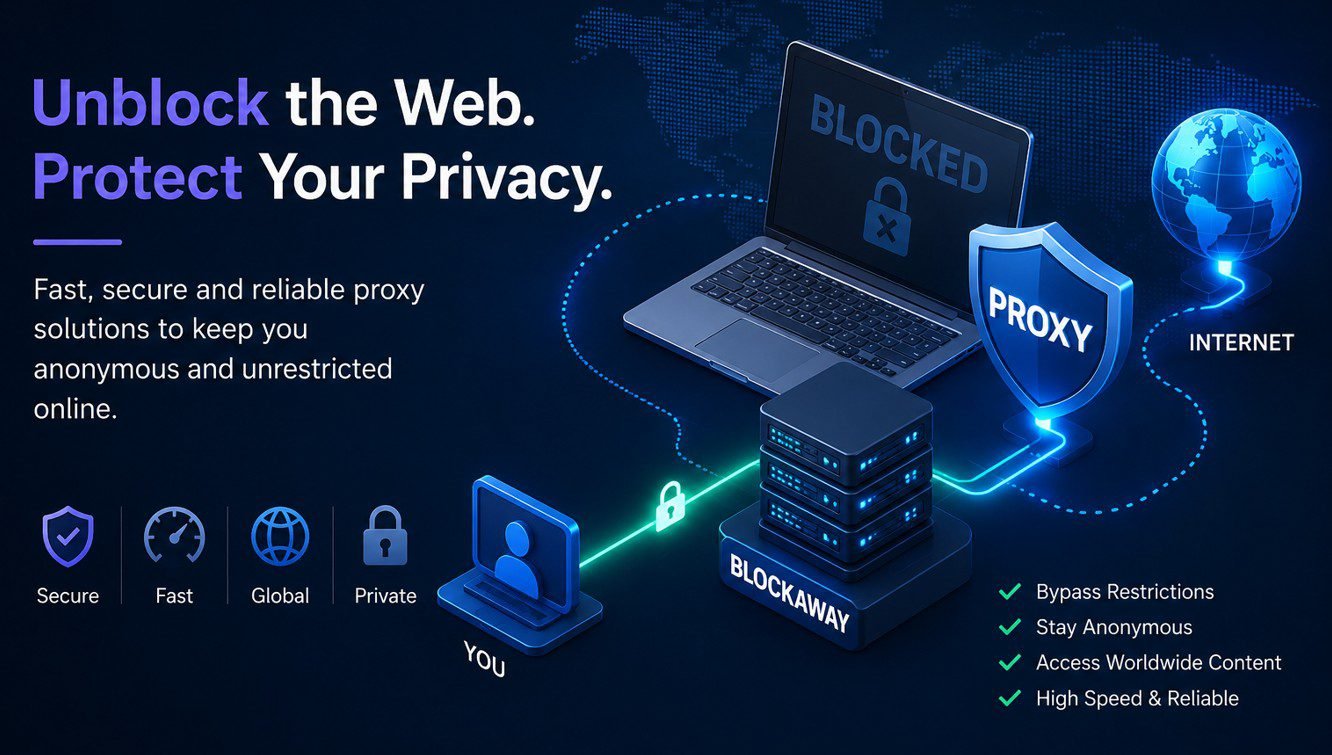
BlockAway not working is one of the most searched proxy-related queries — and understandably so. You need to unblock a site, everything looks correct, but the page refuses to load. Before switching to an alternative, there are eight specific fixes that resolve the vast majority of BlockAway issues. Work through them in order, and in most cases you will have a working connection before reaching the end of this list.
Why BlockAway Stops Working
BlockAway stops working for several distinct reasons, and identifying which one applies to your situation makes the fix faster. The most common causes are cached browser data conflicting with the proxy session, the target website detecting and blocking the proxy’s server IP, your network administrator blocking access to blockaway.net itself, browser extensions interfering with the proxied page, or temporary server overload on BlockAway’s infrastructure.
Additionally, some issues are site-specific rather than a problem with BlockAway itself. A site that actively invests in proxy detection — streaming platforms particularly — will block BlockAway’s servers regardless of what troubleshooting you do. Understanding this distinction saves time: some fixes address your connection, others address the target site’s resistance.
Fix 1: Clear Your Browser Cache and Cookies
Cached data from a previous direct visit to a website frequently causes problems when you subsequently try to access that same site through a proxy. Your browser stores cookies that identify your real session, and those cookies persist even after you start routing through BlockAway. Consequently, the target site recognises your real identity from the cookie and bypasses the proxy’s IP mask.
To fix this, clear your browser’s cache and cookies before starting a BlockAway session. In Chrome, press Ctrl + Shift + Delete (Windows) or Cmd + Shift + Delete (Mac), select cookies and cached images, and clear them. Then open BlockAway fresh and re-enter the URL.
Fix 2: Switch to a Different Server Location
BlockAway provides multiple server locations, and the IP address of each server is different. If the target website has specifically blocked the IP range of the server you are currently using, switching to a different server location may resolve the issue immediately. This is particularly relevant for streaming sites and social media platforms that maintain active blocklists of known proxy server IPs.
Furthermore, if the server in your current location is under heavy load, switching to a geographically different server reduces congestion and improves speed. Try at least two or three different locations before concluding that the issue is not server-specific.
Fix 3: Open BlockAway in an Incognito or Private Window
Browser extensions — ad blockers, privacy tools, script blockers, and security extensions — frequently interfere with how proxied pages render. An extension that blocks certain scripts may prevent the proxy from properly rewriting page links, causing navigation to break or pages to load partially. Additionally, stored session data from your regular browsing profile can leak into proxy sessions.
Opening an incognito window (Ctrl + Shift + N in Chrome, Ctrl + Shift + P in Firefox) disables most extensions by default and starts with a clean session. Open blockaway.net in incognito and test whether the issue resolves. If it does, an extension in your regular profile is the cause.
Fix 4: Disable Browser Extensions Individually
If the incognito test confirms an extension is the problem, identify which one by disabling them individually. Go to your browser’s extensions page — in Chrome, visit chrome://extensions — and toggle extensions off one by one, testing BlockAway after each. Ad blockers (uBlock Origin, AdBlock Plus) and privacy extensions (Privacy Badger, Ghostery) are the most frequent culprits because they interfere with the scripts BlockAway uses to rewrite page content.
Once you identify the conflicting extension, either whitelist blockaway.net within that extension’s settings or keep it disabled while using the proxy.
Fix 5: Enter the Full URL Including https://
A surprisingly common cause of BlockAway not loading a page correctly is an incomplete URL. BlockAway requires a full URL including the protocol prefix. Entering youtube.com instead of https://www.youtube.com causes the proxy to either fail silently or load an error page. Always include https:// at the start of the URL, and include www. if the site uses it in its standard address.
Fix 6: Try a Different Browser
Browser-specific settings, security policies, and cached data can create issues that do not exist in a different browser. If BlockAway is not working in Chrome, try it in Firefox, Edge, or Brave. Mobile browsers sometimes handle proxied content differently from desktop browsers as well — if you are on a desktop and experiencing issues, trying the mobile browser version of the target site through BlockAway often resolves rendering problems.
Fix 7: Check Whether BlockAway Itself Is Blocked on Your Network
Many school and workplace networks now block access to blockaway.net directly at the DNS or firewall level. If you cannot even load the BlockAway homepage, your network has blocked the service rather than the target site. In this case, the fix is to access BlockAway through your mobile data connection rather than the restricted network’s Wi-Fi.
You can confirm this by switching your device to mobile data and testing whether blockaway.net loads. If it loads on mobile data but not on Wi-Fi, your network is blocking the proxy service itself. See our guide: How to Use BlockAway on School or Work Networks.
Fix 8: Try a BlockAway Alternative
If all seven fixes above have failed for a specific website, that site likely has proxy detection in place that BlockAway currently cannot bypass. In this situation, trying an alternative proxy with a different server IP range may succeed where BlockAway fails. CroxyProxy and Proxyium are the two strongest alternatives and use different server infrastructure — meaning their IPs may not be on the same blocklist as BlockAway’s.
For a full list of tested alternatives, see: 10 Best BlockAway Alternatives. You can also use our Website Blocked Checker to confirm whether the target site is accessible at all from your current network before spending more time troubleshooting the proxy.
Quick Fix Summary
| Fix | What It Solves | Time Required |
|---|---|---|
| 1. Clear cache and cookies | Session conflicts from previous direct visits | 30 seconds |
| 2. Switch server location | IP blocked by target site | 10 seconds |
| 3. Open incognito window | Extension interference, session data | 10 seconds |
| 4. Disable extensions individually | Identifies specific conflicting extension | 2–5 minutes |
| 5. Enter full URL with https:// | Proxy failure from incomplete URL | 10 seconds |
| 6. Try a different browser | Browser-specific settings or cache | 1 minute |
| 7. Switch to mobile data | Network blocking blockaway.net itself | 30 seconds |
| 8. Try an alternative proxy | Site-level proxy detection on BlockAway IPs | 2 minutes |
Frequently Asked Questions
Why does BlockAway say “this site can’t be reached”?
This error usually means BlockAway’s server could not connect to the target site. The most common causes are the target site blocking BlockAway’s IP range, the target site being temporarily down, or your network blocking outbound connections through the proxy. Switch server locations first, then check whether the target site is accessible at all using the Website Blocked Checker.
Why does the page load but look broken?
Broken page layouts through a proxy are caused by scripts or stylesheets that do not load correctly through the proxy’s URL rewriting system. This is common on complex web applications and dynamic sites. Try disabling browser extensions, clearing cache, or accessing the mobile version of the site (m.sitename.com) which has simpler code that proxies handle better.
Why does BlockAway work for some sites but not others?
Different websites have different levels of proxy resistance. Simple, static sites almost always work. Social media platforms work in most cases. Streaming services like Netflix actively invest in detecting and blocking proxy connections and are consistently the most difficult to access through any free proxy, including BlockAway.
Is BlockAway down right now?
To check whether BlockAway itself is experiencing downtime, visit blockaway.net on a mobile data connection. If it loads on mobile data but not on Wi-Fi, your network is blocking it. If it does not load on mobile data either, BlockAway may be experiencing server issues. See our dedicated guide: Is BlockAway Down?
Why does BlockAway work the first time but not after?
This pattern typically indicates session cookies from the target site being stored and conflicting with the proxy on subsequent visits. Clear your cookies after each BlockAway session to prevent this, or use incognito mode consistently so the browser never stores proxy session cookies.
Does the premium version of BlockAway fix these issues?
The premium tier addresses speed-related issues and provides access to more server locations, which helps when a specific server’s IP has been blocked. It does not change how the proxy handles extension interference, cache conflicts, or network-level blocks on blockaway.net itself. Fixes 1, 3, 4, 5, and 7 apply equally to both free and premium users.