If you’re on a school-issued Chromebook, GoGuardian and Securly are almost certainly the reason certain sites won’t load. Both are web-filtering and monitoring tools schools install at the network or device level — and understanding how they work is the first step to getting around unnecessary blocks.
What GoGuardian and Securly Actually Do
GoGuardian and Securly are two of the most widely used school content-filtering platforms in the US. They work by intercepting web traffic on managed Chromebooks — often through a browser extension that can’t be removed by the student, combined with network-level filtering — and blocking sites based on category lists (social media, games, streaming) or specific domains an administrator adds manually. Some configurations also log browsing activity and can flag or screenshot certain search terms for staff review.
Because the extension runs at the browser level on a managed device, blocks from these tools can be harder to get around with a simple web proxy than a typical home or office firewall block — the extension itself, not just the network, is doing the filtering.
Method 1: Try a Web Proxy First
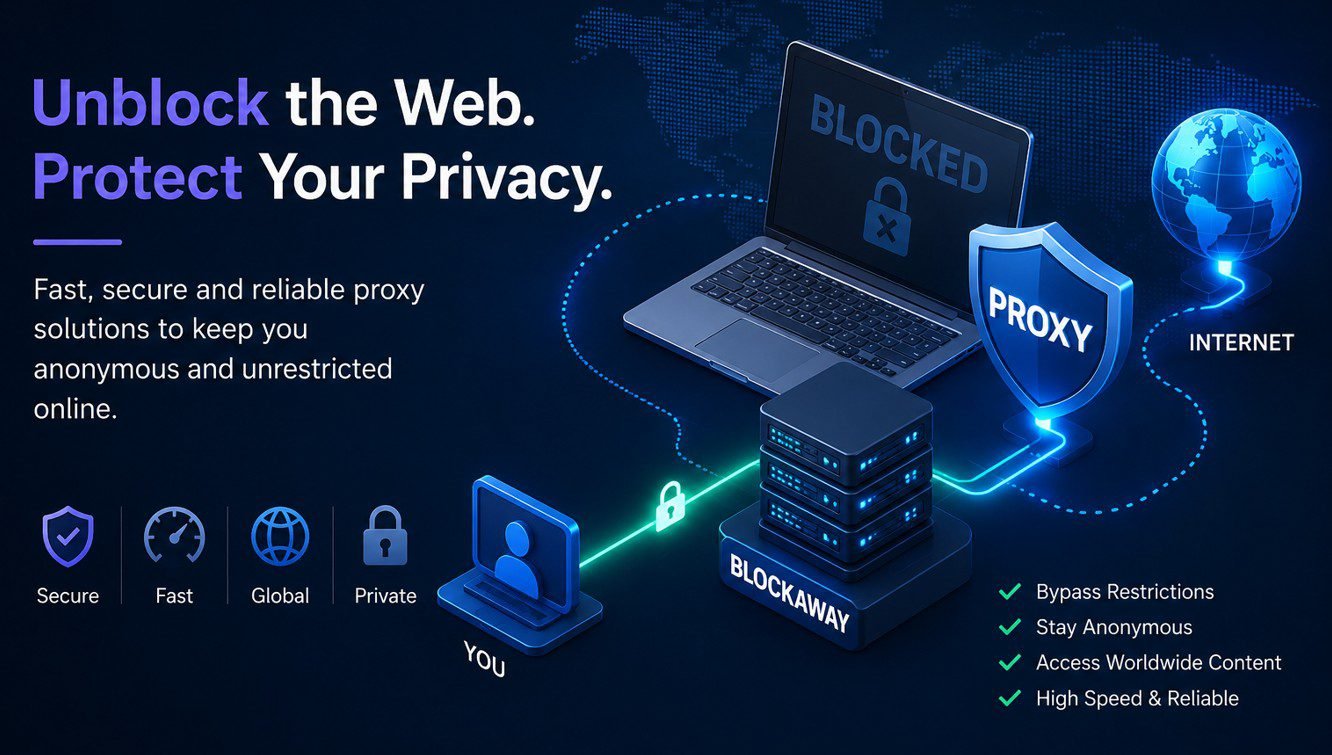
On networks where GoGuardian or Securly filter by domain rather than intercepting the browser directly, a web proxy like BlockAway can still work, since the filter only sees a connection to the proxy’s domain rather than the actual site you’re loading through it. Results vary by school — some configurations catch this, others don’t.
Method 2: Use a Personal, Non-Managed Device
If GoGuardian or Securly is installed as a browser extension tied specifically to the school-issued Chromebook profile, switching to a personal phone or laptop on the same Wi-Fi may bypass the device-level filtering entirely — though the network itself may still apply separate restrictions.
Method 3: Switch to Cellular Data
If the filtering happens primarily at the school’s network level (rather than baked permanently into the Chromebook’s browser), using a personal device on cellular data instead of the school Wi-Fi sidesteps the network filter completely, since GoGuardian/Securly’s network-side blocking typically only applies to traffic on the school’s own network.
Method 4: A VPN as a Fallback
On stricter setups where a proxy gets caught, a VPN can succeed where a proxy fails, because it encrypts the entire connection rather than relaying individual pages — making it much harder for either tool to inspect or categorize the traffic. NordVPN is a reasonable option here, though keep in mind some managed Chromebooks block VPN app installation entirely at the device policy level.
Know the Actual Risk Before You Try Any of This
GoGuardian and Securly exist specifically to enforce a school’s acceptable-use policy, and most schools explicitly prohibit bypassing them — doing so can carry real consequences ranging from a warning to loss of device privileges, regardless of which technical method you use. If there’s a specific site you need for legitimate schoolwork (a research source, an educational tool wrongly categorized as blocked), asking a teacher or the IT department to whitelist it directly is both the safest and often the fastest fix.
Frequently Asked Questions
Can GoGuardian see what I search even if a site isn’t blocked?
Yes — depending on the school’s configuration, GoGuardian can log and sometimes flag search activity for staff review, separate from whether a specific site is blocked.
Does a web proxy always work against GoGuardian or Securly?
Not always. Because these tools can filter at the browser-extension level on managed Chromebooks rather than only the network level, some configurations catch and block proxy traffic that would work on a simpler home or office filter.
Will using cellular data instead of school Wi-Fi bypass Securly?
It can, if the filtering is applied primarily at the network level rather than baked into the device’s browser profile — switching to a personal device on cellular data avoids the school’s network entirely.
Is it against school rules to bypass GoGuardian?
In nearly all schools, yes — bypassing an installed content filter typically violates the acceptable-use policy students agree to when issued a school device, independent of whether the destination site itself is appropriate.
What’s the safest way to access a blocked educational site at school?
Asking a teacher or the school’s IT department to whitelist the specific site is the safest option — it resolves the block permanently without any policy risk.
Does a VPN work better than a proxy against school filtering software?
Generally yes, since a VPN encrypts the full connection rather than relaying individual pages, making it harder for extension-based filters like GoGuardian to inspect and categorize the traffic.